How to Turn 16:9 Video to TikTok Format CapCut Easily in 2026

In the evolving landscape of social media video creation, the transition from horizontal content to vertical viewing experiences has become mandatory for creators aiming to go viral. Platforms like TikTok, Instagram Reels, and YouTube Shorts have solidified the 9:16 aspect ratio as the gold standard for mobile engagement. However, much of the high-quality footage shot on traditional cameras or repurposed from YouTube still exists in the classic 16:9 landscape format. The challenge for many editors in 2026 is converting this footage without losing quality or cutting out essential visual elements.
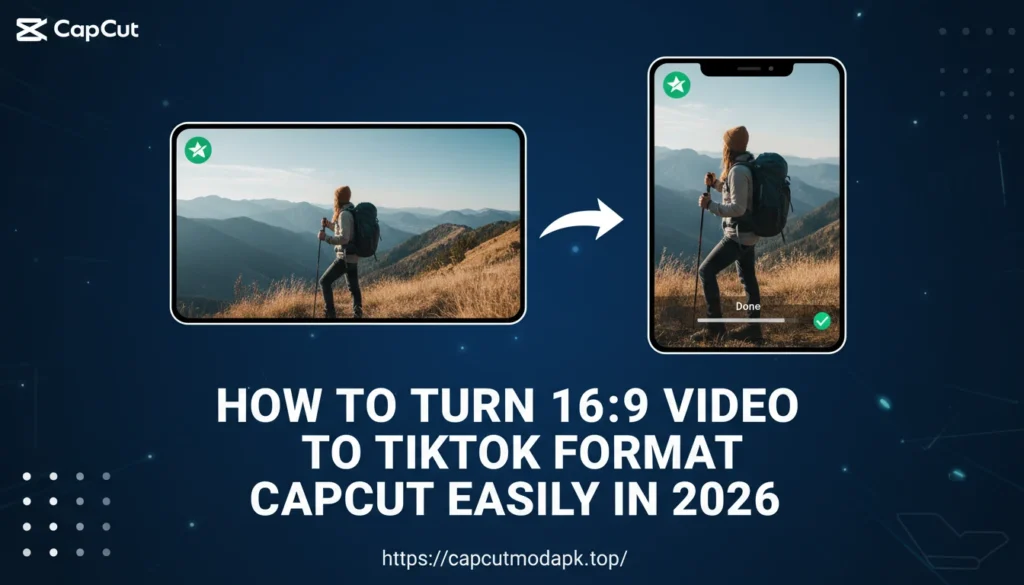
This is where CapCut, the all-in-one video editing powerhouse, shines. Whether you are a beginner vlogger or a professional content strategist, understanding how to resize and reframe content is a fundamental skill. In this comprehensive guide, we will explore the technical nuances of aspect ratio conversion. We will detail the specific steps for every platform and discuss how to use advanced features like Auto Reframe. If you are looking to Turn 16:9 Video to TikTok Format CapCut Easily, this article serves as your ultimate manual.
Why CapCut Is Best for Converting 16:9 to TikTok?
CapCut has surged in popularity not just because it is free, but because its architecture is fundamentally designed around the TikTok ecosystem. Unlike traditional desktop editors like Premiere Pro or DaVinci Resolve, which can be overkill for quick social media clips, CapCut offers a streamlined workflow specifically optimized for vertical video. The synchronization between CapCut and TikTok allows for direct exports, sound library integration, and trend analysis.
The primary reason CapCut is superior for this specific task lies in its Canvas and Auto Reframe capabilities. When you import a wide 16:9 video into a vertical 9:16 project, you are immediately faced with large black spaces above and below the video. CapCut provides intuitive solutions to fill this space, whether through blurring the background, adding a solid brand color, or intelligently cropping the footage to keep the subject in the center. Furthermore, the rendering engine in CapCut is optimized to prevent quality loss during the cropping process, ensuring your 1080p or 4K landscape footage remains crisp when zoomed in for a vertical format.
How to Turn 16:9 Video to TikTok Format CapCut on Android?
Android users make up a vast portion of the CapCut user base. The process on Android is touch-intuitive and designed for speed. Here is a detailed walkthrough to ensure your landscape video fits perfectly on the TikTok “For You” page.
Step-by-Step Android Guide
First, launch the CapCut application on your Android device and tap on New Project. Select the 16:9 video you wish to convert from your gallery and tap Add. Once the video is on the timeline, you will notice it retains its original horizontal shape with a black background.
To change this, locate the toolbar at the bottom of the screen. Scroll to the right until you find the Ratio or Format button. Tap it and select the 9:16 option, which is often marked with the TikTok icon. Your canvas will now change to vertical, but your video will still be small and centered.
You now have two choices. You can manually pinch the video preview with two fingers and zoom in until the video fills the entire screen. This is ideal if the subject remains in the center of the frame throughout the clip. Alternatively, you can leave the video un-zoomed and use the Canvas feature to create a styled background, which we will discuss later in this article. Once satisfied, export the video at 1080p and 30 or 60 fps for the best results on TikTok.
How to Turn 16:9 Video to TikTok Format CapCut on iOS?
The iOS version of CapCut runs exceptionally smoothly on iPhones and iPads, utilizing the powerful Bionic chips for fast rendering. The interface is nearly identical to Android, but there are nuances in how the operating system handles file exports and gallery management.
Begin by opening CapCut on your iPhone. Start a new project and import your landscape footage. Immediately, tap on the Aspect Ratio icon at the bottom menu. Select 9:16. On iOS, the touch responsiveness is very high, allowing for precise framing. If your video involves a moving subject, you might need to split the clip into multiple segments. For each segment, adjust the position of the video frame to ensure the subject stays visible. This manual keyframing or cutting ensures that when you zoom in on a 16:9 video, the important action isn’t cut off on the left or right sides.
After adjusting the framing, tap the export arrow in the top right corner. Ensure that “Smart HDR” is turned off in your system settings if you notice color shifts, although CapCut handles iPhone HDR footage relatively well in 2026 updates.
How to Turn 16:9 Video to TikTok Format CapCut on PC?
The desktop version of CapCut has gained massive traction among professional editors who prefer a mouse and keyboard workflow. Converting aspect ratios on the PC version offers more precision and a larger view of the canvas.
Open CapCut for Windows. Upon creating a new project, you will see the timeline and the player window. Under the player window, there is usually a “Ratio” button set to “Original” by default. Click this and change it to 9:16. The black bars will appear immediately.
On PC, you can use the Scale slider in the Video > Basic tab on the right-hand inspection panel. Increase the scale until the video fills the vertical frame. You can also use the X and Y position coordinates to center your subject perfectly. This numerical precision is a significant advantage of the PC version over mobile versions, ensuring consistency across multiple clips.
Using CapCut on Mac for TikTok Videos
CapCut on Mac, especially on devices with M1, M2, or M3 chips, offers a seamless experience. The application is optimized for Apple Silicon, making the resizing of 4K footage instantaneous.
The workflow mirrors the PC version but integrates Mac-specific gestures. You can use the trackpad to pinch-to-zoom directly on the viewer canvas. When converting 16:9 content, Mac users can also drag and drop files directly from the Finder. A key tip for Mac users is to utilize the Keyframe feature. If your 16:9 video has a subject moving from left to right, set a keyframe on the position parameter at the start of the clip, and another at the end, moving the frame to follow the subject. This mimics a camera pan and is essential for keeping wide-shot action visible in a narrow TikTok format.
Best Canvas and Background Settings in CapCut
Sometimes, zooming in on a 16:9 video to fill a 9:16 screen degrades the quality too much, or cuts out essential context. In these cases, you should keep the video at its original size or slightly zoomed, and style the background.
CapCut offers a specific tool called Canvas. To access this, ensure no specific clip is selected on the timeline, then tap Canvas in the bottom menu.
- Blur: This is the most popular option. It takes your video, duplicates it behind the main clip, zooms it in, and applies a gaussian blur. This fills the screen with matching colors and creates a cohesive look without being distracting.
- Color: If you want a clean, minimalist look, choose a solid color. White or black are standard, but you can use the eyedropper tool to pick a dominant color from your video branding.
- Background: CapCut provides a library of patterns and images. You can also upload your own image to use as a background, which is excellent for branding purposes.
How CapCut Pro Helps in TikTok Video Conversion?
While the free version of CapCut is robust, the Pro version introduces features that significantly speed up the conversion process. The most critical feature for aspect ratio conversion is Auto Reframe.
Auto Reframe uses Artificial Intelligence to analyze your footage. It identifies the moving subject—whether it is a person, a car, or a pet—and automatically generates keyframes to keep that subject in the center of the 9:16 frame. This eliminates the tedious manual work of cutting and positioning the clip every few seconds. For creators converting podcasts or long-form YouTube videos into TikToks, the Pro version’s Auto Reframe is a time-saving necessity.
CapCut Pro APK and Mod APK for Aspect Ratio Editing
In the search for advanced features without subscription costs, many users browse the internet for modified versions of the software. Users often search for CapCut Pro APK to access the premium Auto Reframe and higher quality export settings mentioned previously. The demand for these unlocked versions stems from the need to produce professional-grade conversions efficiently.
When users download a CapCut Pro APK, they typically gain access to the full library of effects and the AI-driven tools that make turning horizontal video to vertical seamless. However, it is essential to understand the software environment. Interestingly, some users make typos and search for Cap Cut Pro APK. Regardless of the spelling, the intent remains the same: accessing premium editing tools.
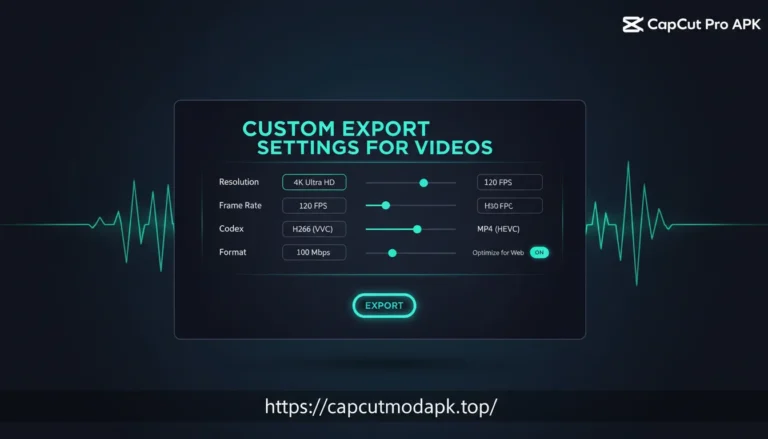
Those who utilize a Cap Cut Pro APK are often looking to bypass the watermark removal process or access 4K exports that might be restricted in basic versions. For those interested in exploring more about these modified tools and resources, you can check capcutmodapk.top for extensive details on editing capabilities.
Using CapCut Old Version for TikTok Format
Technology moves fast, and sometimes updates introduce bugs or change the interface in ways users dislike. Consequently, some editors prefer using older versions of CapCut. The question arises: do old versions support efficient 16:9 to 9:16 conversion?
Generally, yes. The ability to change aspect ratio is a core feature that has existed since CapCut’s inception. However, older versions lack the “Auto Reframe” AI capabilities. If you are using an old version, you will have to rely strictly on manual zooming and keyframing. Additionally, older versions may not have the updated “Canvas” blur algorithms, resulting in a less polished background look. While functional, sticking to the latest version is recommended for the best quality outputs compatible with TikTok’s 2026 compression algorithms.
Conclusion
Converting landscape video to the vertical TikTok format is an essential skill for modern content creators. CapCut provides a versatile, user-friendly platform to perform this task across Android, iOS, PC, and Mac. By utilizing the Ratio tool, mastering the Canvas settings, and leveraging Pro features like Auto Reframe, you can breathe new life into your 16:9 footage. Whether you are repurposing old content or shooting with multiple platforms in mind, following these steps ensures your videos look native and professional on TikTok.